

Thursday, September 12, 2019
Tip: How to kill the WebHelper sub-processes from BitTorrent
It's annoying when you found out that some unidentified processes are hogging a lot of CPU resources while running BitTorrent to download some files. Since i know how to do programming, i've created a console application that constantly monitoring the process list for WebHelper sub processes and kill them when found. As you can see from the picture below, the program checks the process list every minute.
 The simple application which makes use of C# and Windows Form can be retrieved from Git Hub.


Tip: How to get the internal name for SharePoint 365 list
Recently i was trying to do some CSOM coding for a project that requires files to be migrated to SharePoint 365. I created a list in the SharePoint web site and was trying to add new records to the list. I tried to use the "Display Name" for each column from the list in as shown in Diagram 1.

Diagram 1
As you can see from Diagram 2, the line of code that does not work actually makes use of the "Display Name".
Diagram 2
if you try to execute the code you will get the following error.
Diagram 3
In order to get the internal for all the columns, i have to go to the list settings and click on each column and to check the URL for the column internal name. You can see that in Diagram 4.
Diagram 4
The url actually contains the column internal name and you can copy the name from there. The other way which is not covered here is using code to retrieve the internal names.
Diagram 1
As you can see from Diagram 2, the line of code that does not work actually makes use of the "Display Name".
Diagram 2
if you try to execute the code you will get the following error.
Diagram 3
In order to get the internal for all the columns, i have to go to the list settings and click on each column and to check the URL for the column internal name. You can see that in Diagram 4.
Diagram 4
Sunday, June 23, 2019
Tip: How to copy file(s) from Ubuntu to Windows 10
The following is the step by step instruction to copy file(s) from Ubuntu to Windows 10 using the WSL windows feature. Assuming that you have WSL and Ubuntu installed in your windows 10 machine.
1. Open up a command prompt with admin privilege.
2. Type "wsl" to enter the Ubuntu default Linux system.
3. use the following command to copy file:
cp UBUNTU_FILES_OR_DIR WINDOWS10_DIR -r
example: cp opencv-4.0.0/build/CMakeFiles /mnt/c/Temp -r
From the example, notice the use of /mnt to access to Windows 10 file system. "c" means c drive.
1. Open up a command prompt with admin privilege.
2. Type "wsl" to enter the Ubuntu default Linux system.
3. use the following command to copy file:
cp UBUNTU_FILES_OR_DIR WINDOWS10_DIR -r
example: cp opencv-4.0.0/build/CMakeFiles /mnt/c/Temp -r
From the example, notice the use of /mnt to access to Windows 10 file system. "c" means c drive.
Tip: For guaranteed network drive map/access using "Net Use"
The following script can be used to map a network drive or to access a folder in a network drive such as NASH or File Server
Friday, September 14, 2018
Tip: ExcelDataReader returns "Invalid File Signature" when reading an Excel file.
Just happen to notice this problem when i am trying to load multiple Excel files from the same directory. The root cause for such error is simple for me, whenever I populate the file names using the "Directory.EnumerateFiles", it returns the Excel temporary file also, which the file name always start with a "~". So this file actually is not a valid Excel file, that's the reason when "AsDataset" function is called, it always throw error when the codes tried to load that extra file.
 So the solution for me is to always exclude file names that start with a "~".

Wednesday, July 4, 2018
Tip: OpenCV 4.0 Library Files Inclusion
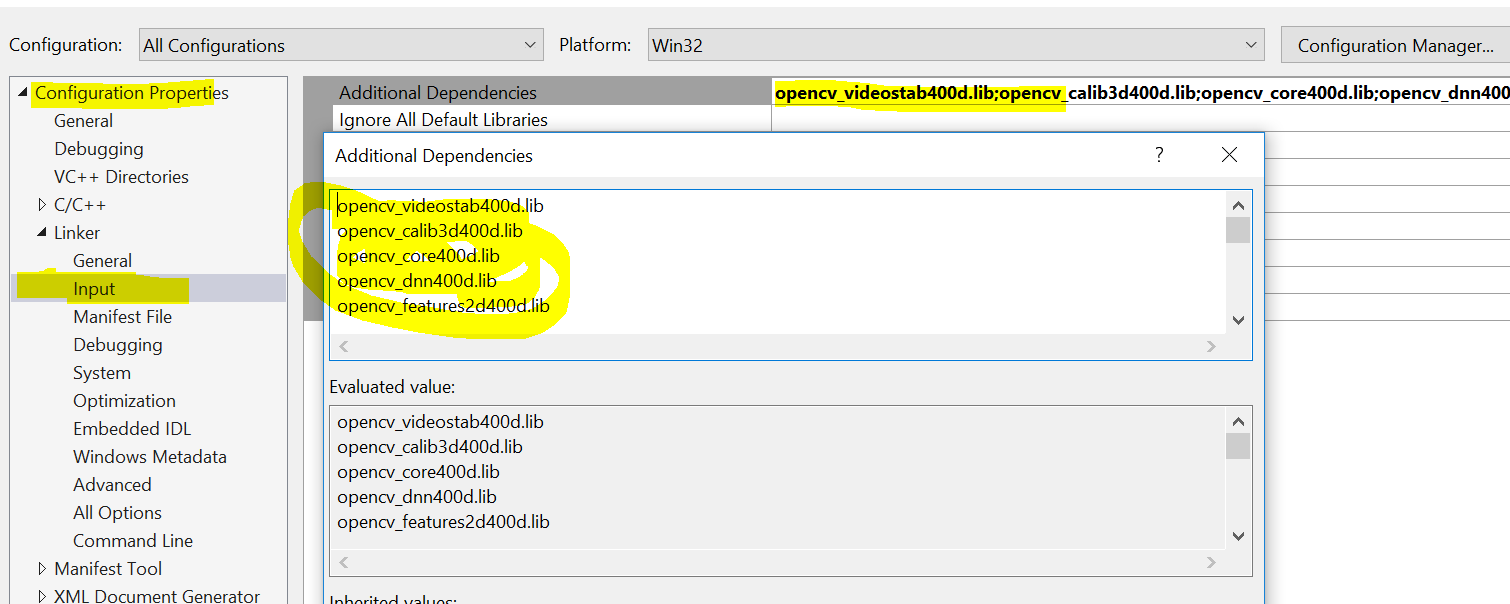 |
| C++ Configuration in Visual Studio 2017 |
opencv_videostab400d.lib
opencv_calib3d400d.lib
opencv_core400d.lib
opencv_dnn400d.lib
opencv_features2d400d.lib
opencv_flann400d.lib
opencv_highgui400d.lib
opencv_imgcodecs400d.lib
opencv_imgproc400d.lib
opencv_ml400d.lib
opencv_objdetect400d.lib
opencv_photo400d.lib
opencv_shape400d.lib
opencv_stitching400d.lib
opencv_superres400d.lib
opencv_ts400d.lib
opencv_video400d.lib
opencv_videoio400d.lib
Tuesday, June 5, 2018
Tip: How to properly setup the EmguCV/OpenCV OCR in Visual Studio.
Running the OpenCV OCR against an image requires setup that reads the related language file from a pre-defined directory in your machine. Usually if you did not specify any path, it will look from the application path if you are building an exe file. Below is a sample code that reads an image and write the text to the console.
I am using EmguCV 3.4.1 for the testing. In Visual Studio, you have to include the reference to the .NET wrapper dll Emgu.CV.World dll.
 You need to create a new folder with the name "tessdata" inside your running application folder, for example the "debug" folder. In this folder you have to put in the language file which you can download from Language Files.. In this case i downloaded the "eng.traineddata" because the picture that i wants to read is in English language.
After you compile the application, you should be able to see something like this:
You need to create a new folder with the name "tessdata" inside your running application folder, for example the "debug" folder. In this folder you have to put in the language file which you can download from Language Files.. In this case i downloaded the "eng.traineddata" because the picture that i wants to read is in English language.
After you compile the application, you should be able to see something like this:

using System;
using System.IO;
using Emgu.CV;
using Emgu.CV.OCR;
using Emgu.CV.Structure;

namespace ConsoleOCR
{
    internal class Program
    {
        private static void Main(string[] args)
        {
            using (var image = new Image<Bgr, byte>(Path.GetFullPath("testImage.png")))
            {
                using (var tesseractOcrProvider = new Tesseract(@"", "eng", OcrEngineMode.Default)) //point to TESSDATA_PREFIX env variable.
                {
                    tesseractOcrProvider.SetImage(image);
                    tesseractOcrProvider.Recognize();
                    var text = tesseractOcrProvider.GetBoxText().TrimEnd();
                    Console.WriteLine(text);
                }
            }
        }
    }
}
 You need to create a new folder with the name "tessdata" inside your running application folder, for example the "debug" folder. In this folder you have to put in the language file which you can download from Language Files.. In this case i downloaded the "eng.traineddata" because the picture that i wants to read is in English language.
After you compile the application, you should be able to see something like this:
You need to create a new folder with the name "tessdata" inside your running application folder, for example the "debug" folder. In this folder you have to put in the language file which you can download from Language Files.. In this case i downloaded the "eng.traineddata" because the picture that i wants to read is in English language.
After you compile the application, you should be able to see something like this:
Subscribe to:
Posts (Atom)